
Follow these steps to set the ruler:
1. Open Impact Designer Admin
2. Click “Products” on the navigation panel.

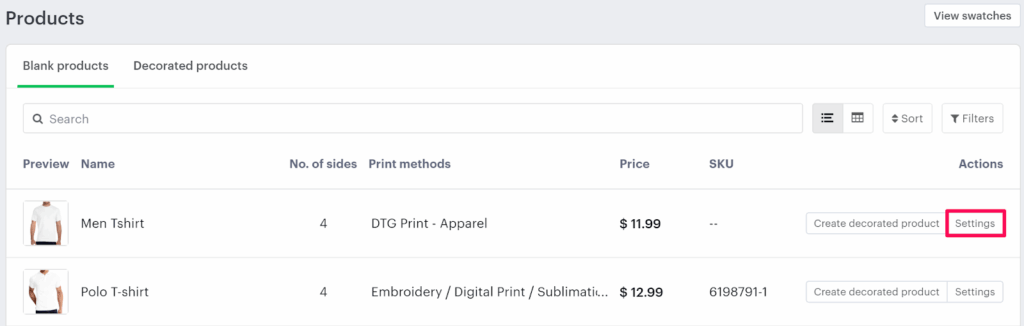
3. On the Products page, click “Settings” under the Actions column.
4. The Decoration Area Settings page will appear.
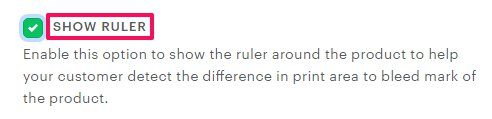
• Scroll down to find the Show Ruler option and toggle it on to enable it.
5. Click “Save Decoration Area” to apply your changes.
You’ve successfully set the ruler!
► To display the ruler on a product, make sure you’ve configured an imprint area for that product first.