
Steps to Set the Default Printing Method
1. Open Impact Designer Admin.
2. Click “Products” in the navigation panel.

3. On the Products page, click “Settings” under the Actions column.
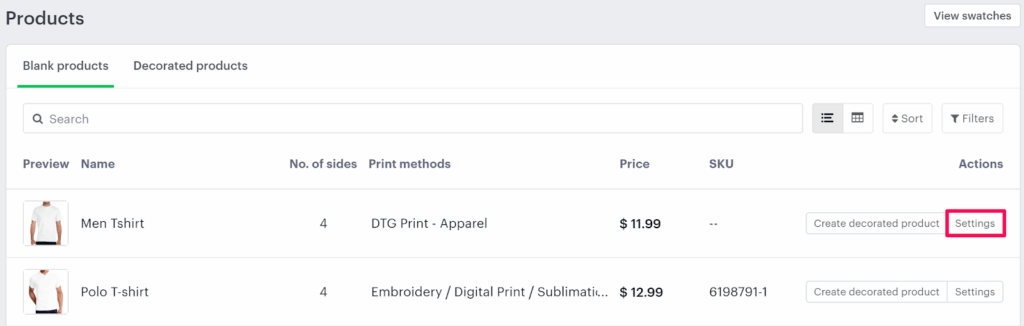
► Before setting a default print method, make sure you’ve assigned multiple printing methods and configured decoration areas for the product.
4. Scroll down to the Assign Print Method section.
• Under the Default column, open the dropdown for each decoration area and select your preferred default printing method.
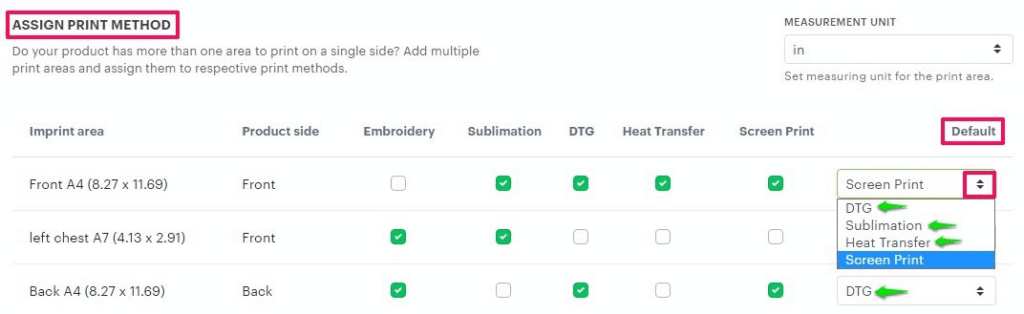
5. Click “Save Decoration Area” to apply your changes.
You’ve successfully set the default printing method for each decoration area!