
Steps to Set the Color Variants of a Product
1. Open Impact Designer Admin.
2. Click “Products” in the navigation panel.

3. The list of products will appear. Click “Settings” under the Actions column for the product you want to edit.
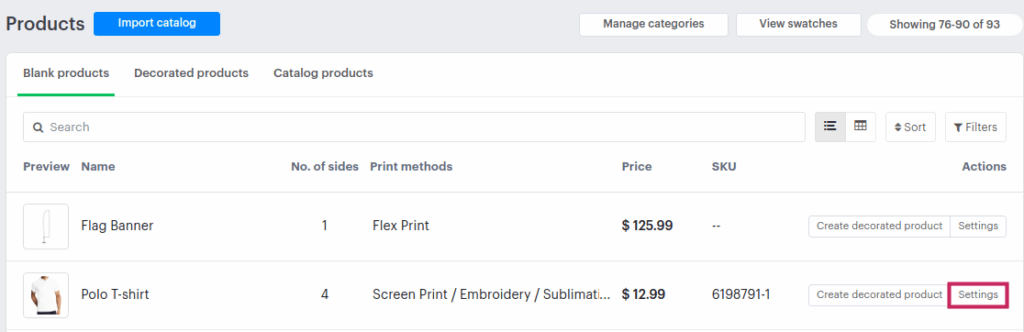
4. In the new page, select the Color Variants tab.
• The colors already associated with the product will be displayed.
5. Pick a color using the Color Picker or upload a color swatch image in .png format.
6. Enable the checkbox for White, Dark, or Light to classify the color type.
7. Click “Save” to apply your changes.
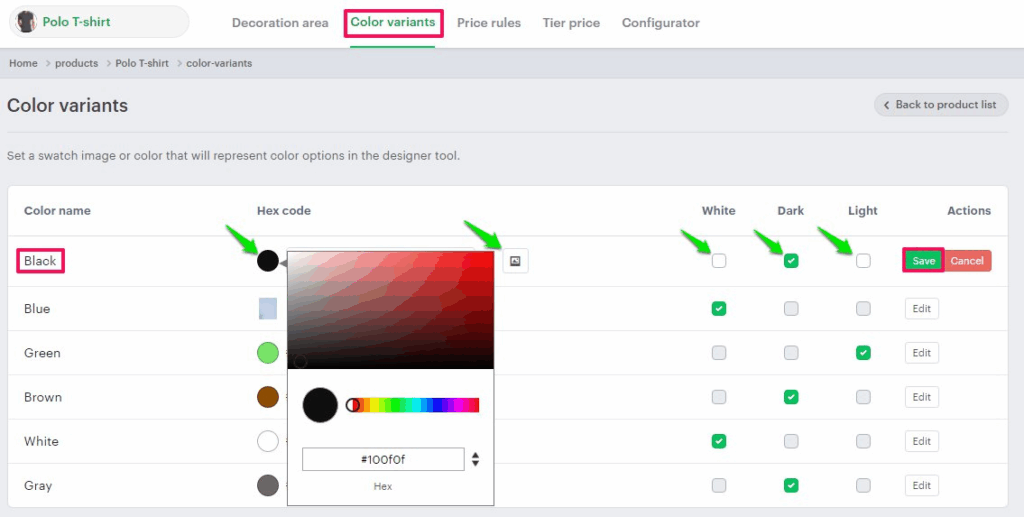
► You need to select the product color type (White, Dark, or Light). This option can also be used to add a white base layer for darker color products before printing. You can also set a price adjustment for this option. Click here to configure the price.
You’ve successfully set the color variants for your product!