
To set an additional price for product color variants:
1. Open Impact Designer Admin.
2. Click “Products” in the navigation panel.

3. On the Products page, click “Settings” under the Actions column.

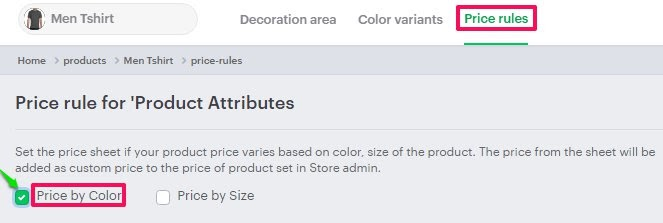
4. Go to the Price Rules tab and check the box labeled “Price by Color.”
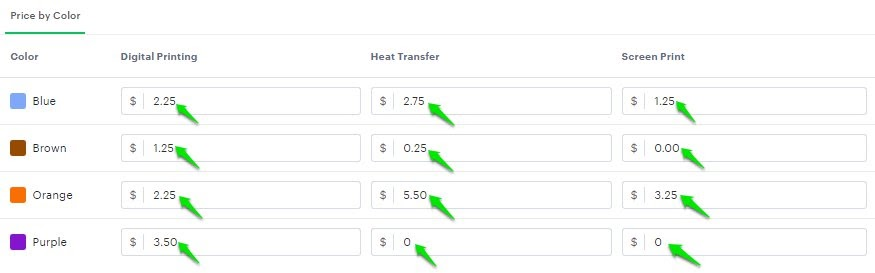
5. A list of color variants will appear below.
• Enter the additional cost for each desired product color variant under the respective print methods (e.g., Digital Printing, Heat Transfer, Screen Print, etc.).
6. Click “Save Price Rule” to apply your changes.
You’ve successfully set additional pricing for product color variants!