
Steps to Enable Borders for Variable Decoration Areas
1. Open Impact Designer Admin.
2. Click “Products” in the navigation panel.

3. On the Products page, click “Settings” under the Actions column.

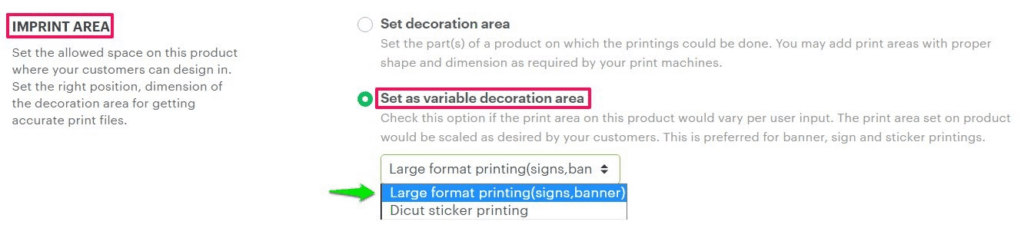
4. Scroll down to find the Imprint Area section.
• Enable the radio button labeled Set as a Variable Decoration Area.
• From the dropdown, select “Large Format Printing”.
► Configuring a size attribute allows customers to select predefined sizes already assigned to the product in your e-commerce store.
5. Under Allow User to Change Dimensions, open the Size Attribute dropdown and select the appropriate size for the product.
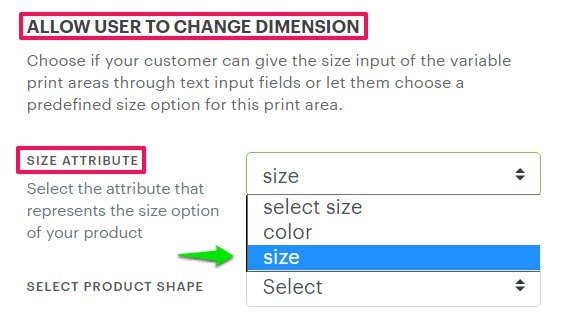
6. Open the Select Product Shape dropdown.
• A pop-up will appear, choose your desired decoration area shape for the product.
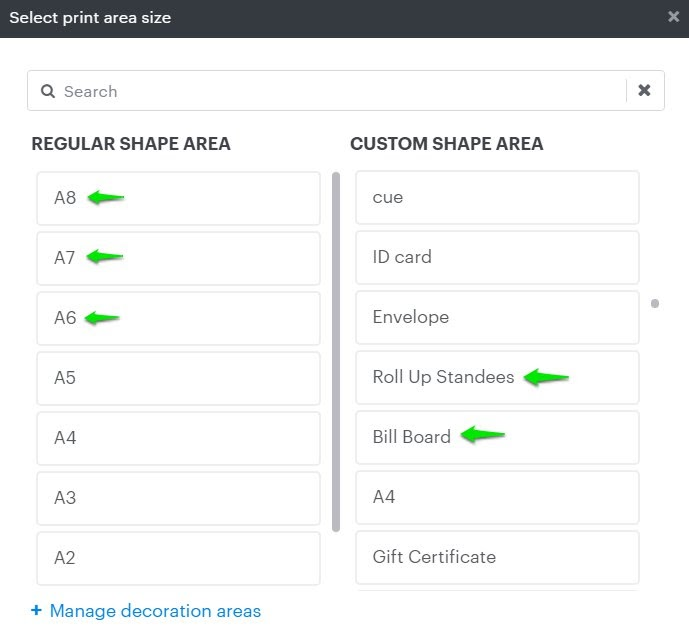
7. Move to the right and adjust the decoration area as needed.
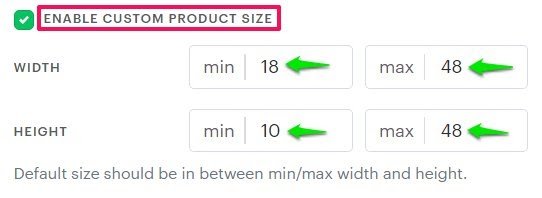
► The Custom Product Size option allows customers to modify product dimensions within a set minimum and maximum range.
8. Check the box labeled “Enable Custom Product Size.”
9. Enter values for Minimum Width, Maximum Width, Minimum Height, and Maximum Height.
10. Scroll down and enable the checkbox “Enable Border”.

11. Click “Save Decoration Area” to apply your changes.
You’ve successfully enabled borders for variable decoration areas!