
Create decorated products for your customers so they can easily personalize designs by changing text, colors, and more before checking out.
Steps to create a decorated product
1. Open Impact Designer Admin.
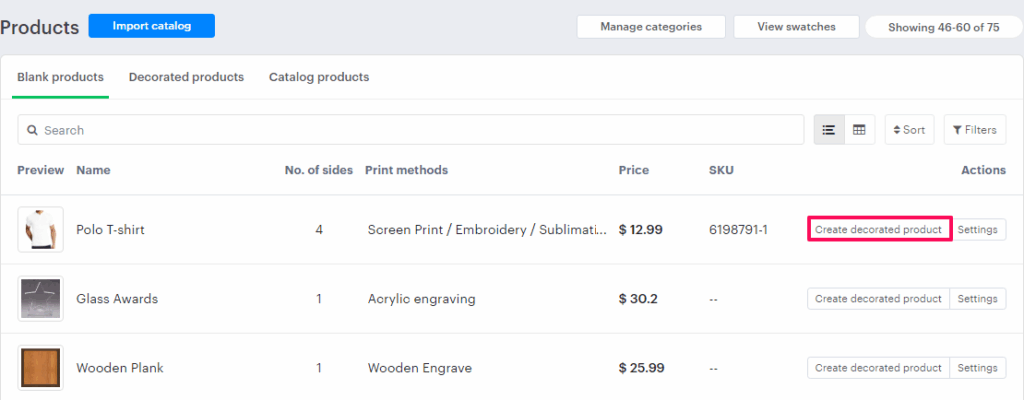
2. Click “Products” in the navigation panel.

3. On the Products page, choose any product and click “Create a Decorated Product” under the Actions panel.
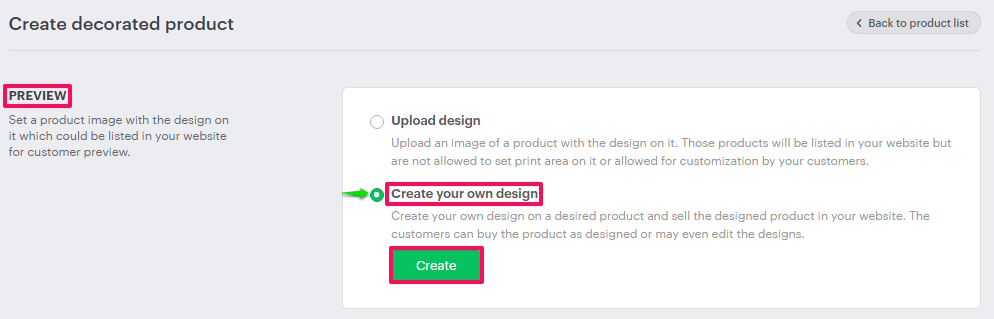
4. In the Preview section, select Create Your Own Design and click “Create.”
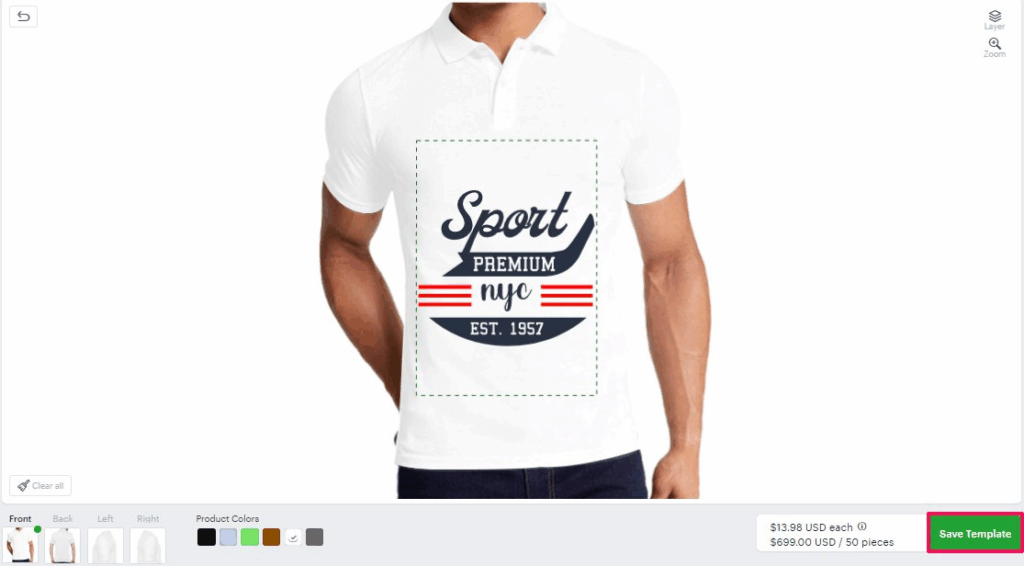
5. You’ll be redirected to the Designer Tool.
• Add your desired designs, text, or artwork, then click “Save Template.”
6. A Save Template pop-up will appear. Configure the following settings:
• For each design element, assign a title and enable the checkboxes to lock specific design properties such as Move, Resize, Rotate, or Delete.
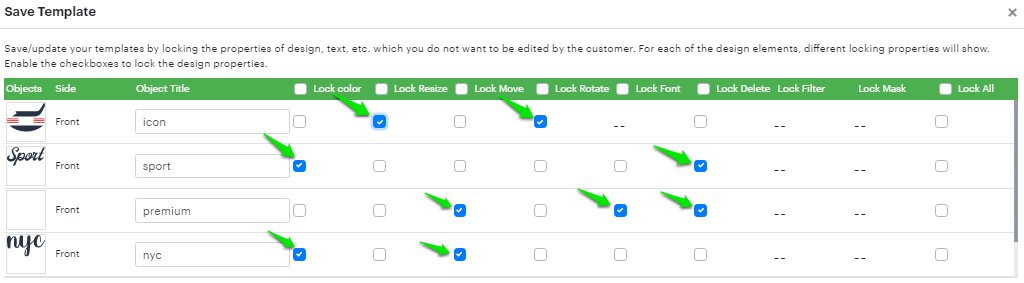
► You can lock individual design elements or choose Lock All to restrict all properties at once.
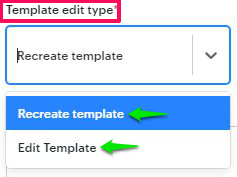
Template Edit Type Options
You can save templates in two different modes:
• Recreate Template – Customers cannot edit locked design properties. They can, however, add new elements like clipart or text.
• Edit Template – Allows customers to edit existing text or designs directly within the Template Form, which appears on the left side of the Designer Tool.
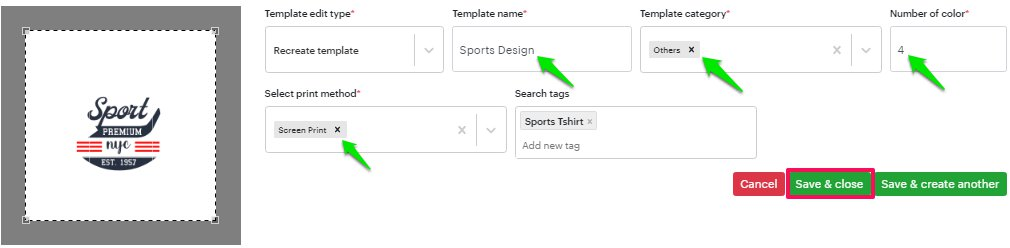
7. Set the template properties such as:
- Template Name
- Category
- Color
- Print Method
Then click “Save & Close”.
► To display a pre-decorated product to customers, you must add it as a product in Impact Designer Admin.
8. The saved template will now appear beside the “Create” button.
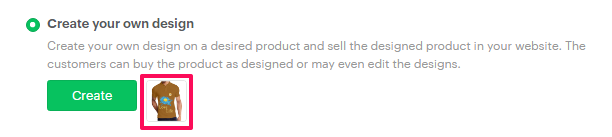
9. Enable the checkbox labeled Enable Redesign.

► Enabling Redesign displays the Customize button for pre-decorated products in your store.
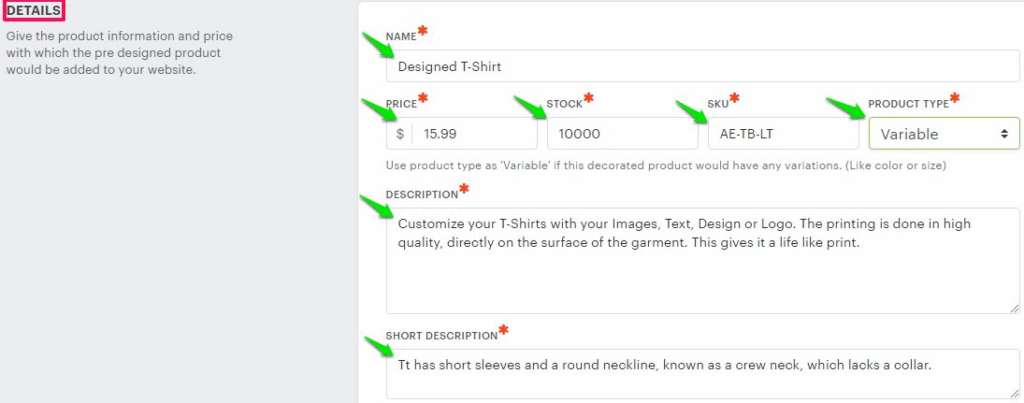
10. In the Details section, enter product information such as Name, Price, Stock, Description, and Short Description.
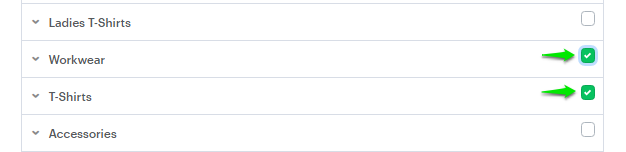
11. Choose the desired Category for the pre-decorated product.
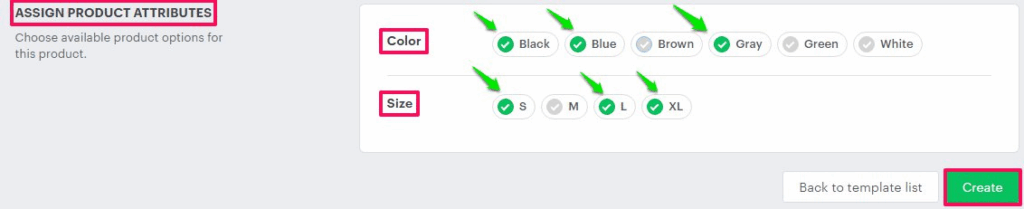
12. Scroll down to Assign Product Attributes.
• From the Color and Size sections, assign appropriate options to the pre-decorated product.
13. Click “Create”.
You’ve successfully created a pre-decorated product!
► Once saved, the pre-decorated product will automatically appear as a new product in your e-commerce store and will be available for your customers to purchase or customize.