
Steps to Assign Product Category and Subcategory
► Product categories and subcategories are fetched from your E-Commerce store.
1. Open Impact Designer Admin.
2. Click “Print Profile” in the navigation panel.

3. In the Print methods page, select your print method and click “Edit”
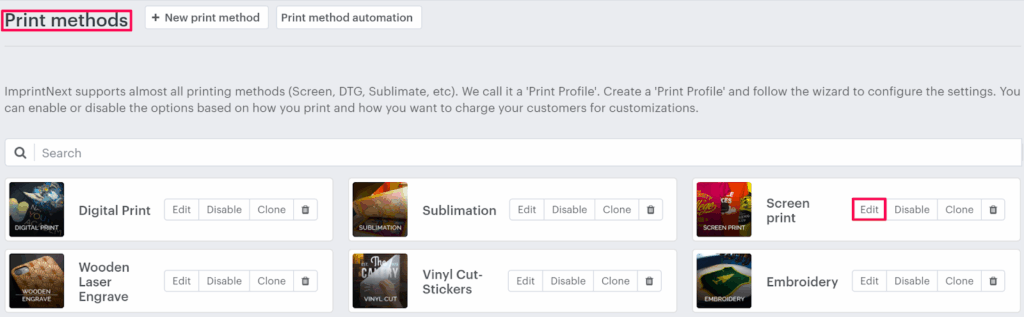
4. Select the Product Setting tab.

5. The product settings page appears. In the Product settings section, select the checkbox of your desired subcategories of product, which are under the product category.
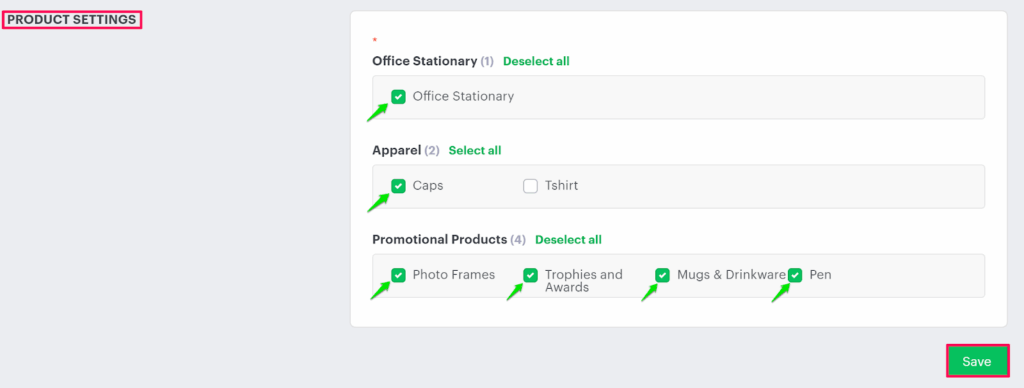
6. Scroll down to the bottom and click “Save.”
You have successfully assigned the product category and subcategory!
► Selecting subcategories automatically assigns the associated products to the selected print method.