
Steps to Show a Warning Message
1. Open Impact Designer Admin.
2. Click “Print Method” in the navigation panel.

3. In the Print methods page, select your print method and click “Edit”
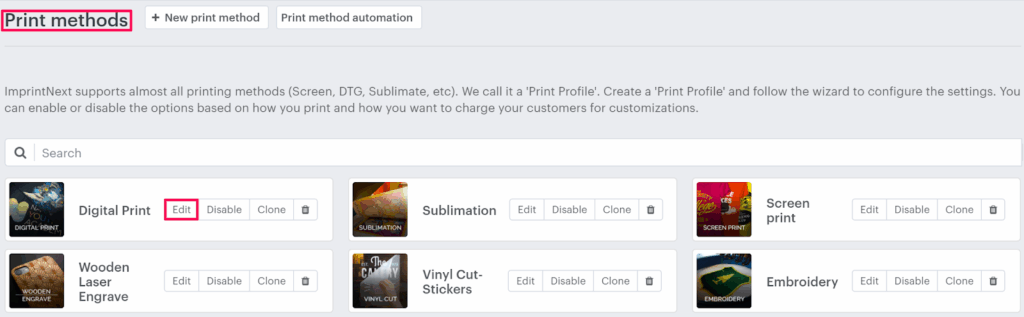
4. The Print method setting page will appear. Scroll down to find Miscellaneous settings and enable the checkbox for Show a warning message if the design is outside of the printing area.
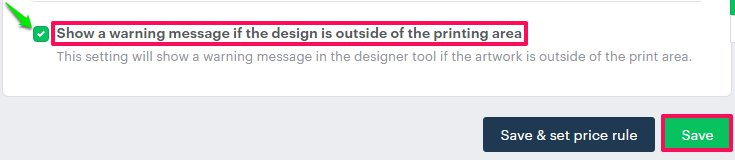
5. Click “Save”
You have successfully enabled the maximum number of colors!
► In the designer tool, a warning message will appear when the customer moves the design outside the decoration area.