
Steps to Set the Default Font
1. Open Impact Designer Admin.
2. Click “Print Method” in the navigation panel.

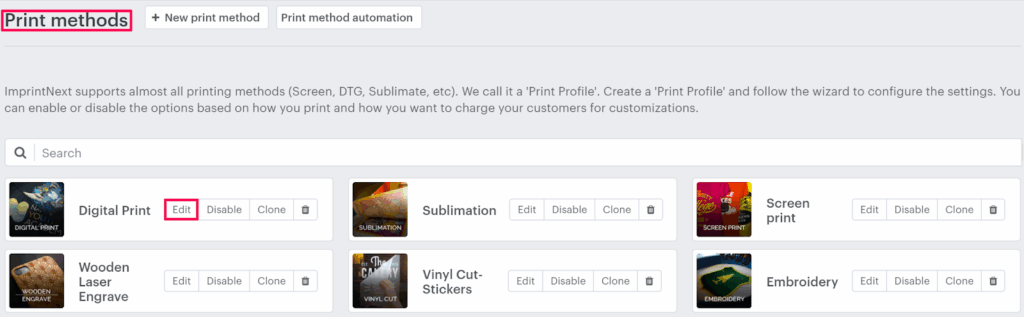
3. In the Print methods page, select your print method and click “Edit”
4. The Print method setting page will appear, and scroll down to find the Text setting.
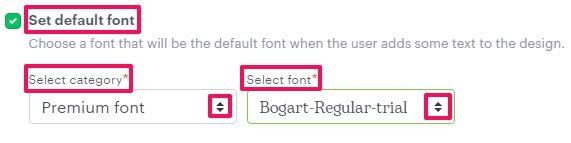
5. Enable the checkbox of the Set default font. From the dropdown of Select Category and Select Font, select the font’s category and the font, respectively.
6. Click “Save”
You have successfully set the default font!
► The designer studio will load with the default font category, which is set in Impact Designer Admin.