
Steps to Set the Default Fill Color and Border Color for Text
1. Open Impact Designer Admin.
2. Click “Print Profile” in the navigation panel.

3. In the Print methods page, select your print method and click “Edit”
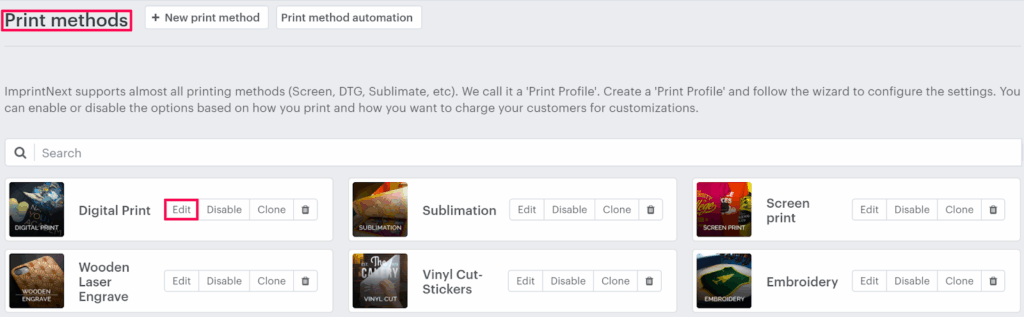
4. The print method setting page will appear. Scroll down to find the Color Setting.
5. Under Default text and border color, pick a color of Fill color and Border color from the color picker.
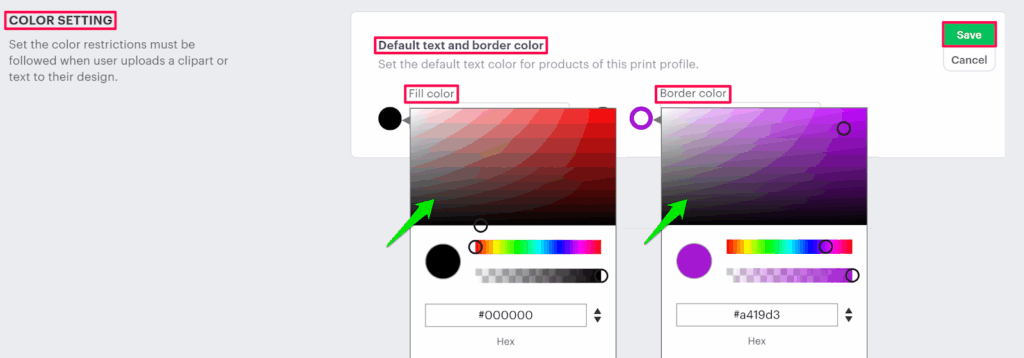
6. Click “Save” or scroll down to the bottom and click “Save”.
You have successfully set the default fill color and border color for text!
► The fill color or border color for text can be viewed while adding text.