
This section is to show any additional information related to image uploads to your customers.
Steps to Set a Message for Image Upload
1. Open Impact Designer Admin.
2. Click “Print Method” in the navigation panel.

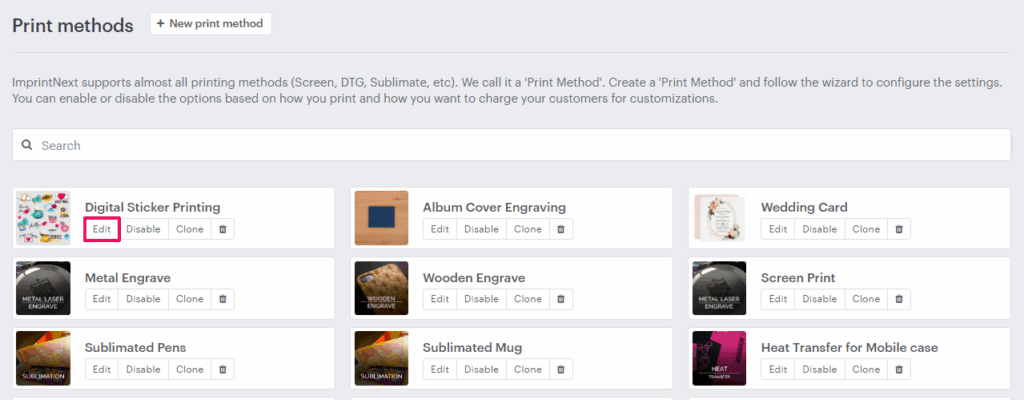
3. In the Print methods page, select your print method and click “Edit”
4. The Print Method settings page will appear. Scroll down to find Image Setting. In the text box for Message for Image Upload, enter the custom message you want to show the customer when they upload an image.
5. Click “Save”
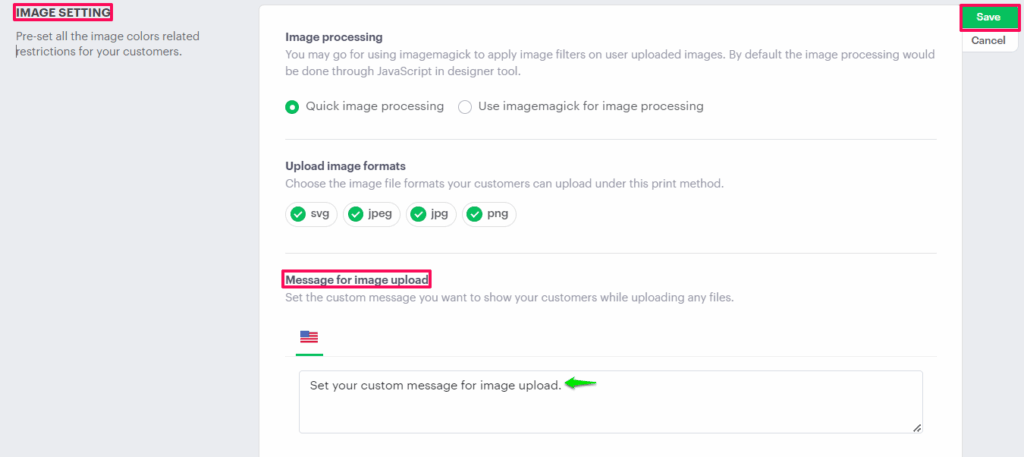
You have successfully set the message for image upload!