
Steps to Hide the Color Options
1. Open Impact Designer Admin.
2. Click “Print Method” in the navigation panel.

3. In the Print methods page, select your print method and click “Edit”
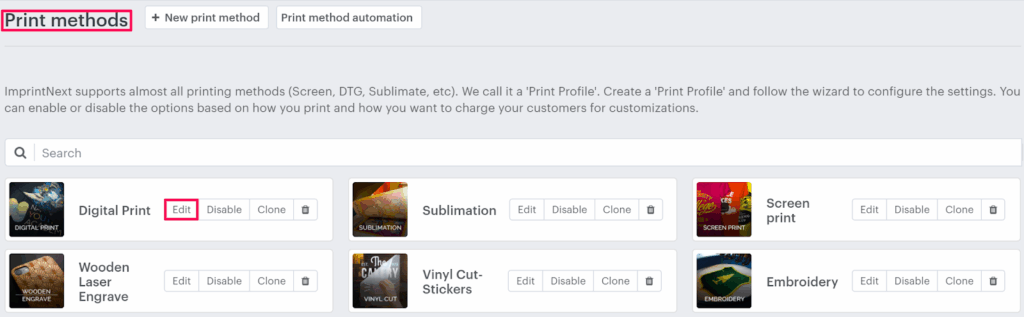
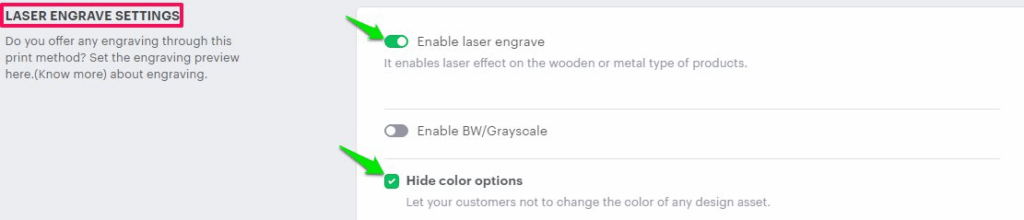
4. The Print method setting page will appear. Scroll down to find Laser Engrave Settings, toggle the button of Enable laser engrave, and enable the checkbox of Hide color options.
5. Click “Save”
You have successfully hidden the color options!
► In Designer Studio, the list of printable colors will not appear when changing the color of clipart, text, or other elements.