
Steps to Enable Black & White or Grayscale
1. Open Impact Designer Admin.
2. Click “Print Method” in the navigation panel.

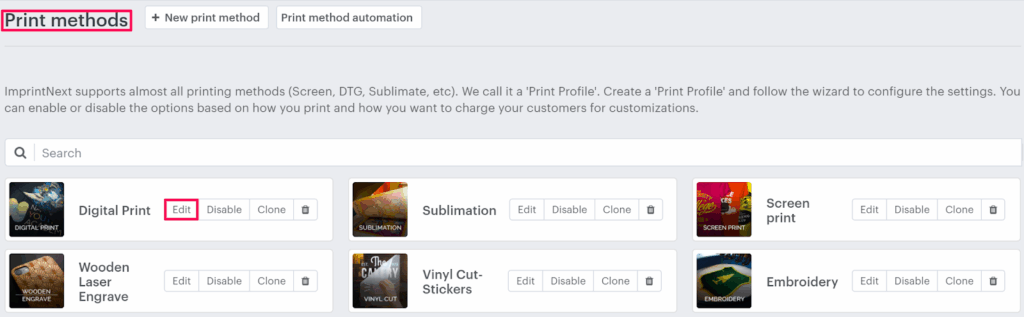
3. In the Print methods page, select your print method and click “Edit”
4. A new page will open. Scroll down to find Laser Engrave settings and toggle Enable Laser Engrave.

5. Enable Black & White or Grayscale. Two options will appear:
- Black & White – Converts clipart and shapes to black and white when added to the product.
- Greyscale – Converts clipart and shapes to grey when used while customizing the product.

6. Click “Save”
You have successfully enabled Black & White or Grayscale for the print method!