
Steps to Enable Auto Convert Images
1. Open Impact Designer Admin.
2. Click “Print Profile” in the navigation panel.

3. In the Print methods page, select your print method and click “Edit”
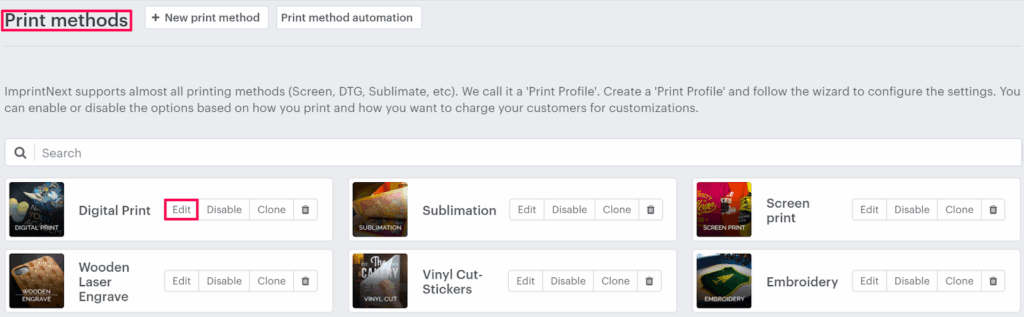
4. The print method setting page will appear, and scroll down to find Image Setting.
5. Move to the right and select the “Auto convert images” checkbox. Click the dropdown box and select your desired image filter.
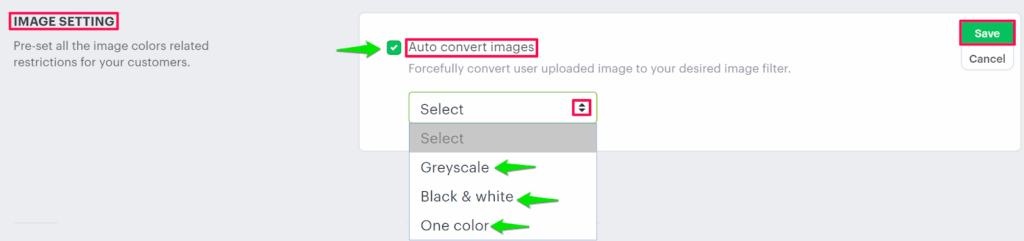
6. Click “Save” or scroll down to the bottom and click “Save”.
You have successfully enabled Auto Convert Images!
► You should have selected a different option from show color to populate in the dropdown.