
Steps to Set Minimum Order Quantity
1. Open Impact Designer Admin.
2. Click “Print Method” in the navigation panel.

3. In the Print methods page, select your print method and click “Edit”

4. A new page will open. Scroll down to find Order settings and enable the checkbox for Allow minimum quantity. Under Minimum Order Quantity, enter your desired minimum value for the quantity ordered of the product.
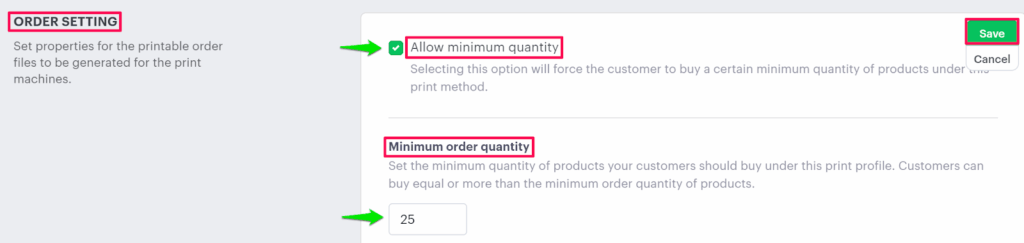
5. Enable the checkbox Apply minimum order quantity and click “Save.”

You have successfully set a minimum order quantity!
► Enabling this option allows customers to buy the minimum quantity for each color variant of the product.