
The tier price table allows you to configure the price based on order quantity. The objective is: the more items you purchase, the lower the per-item price.
Steps to Enable Quantity Tier for Additional Price Setup
1. Open Impact Designer Admin.
2. Click “Print Profile” in the navigation panel.

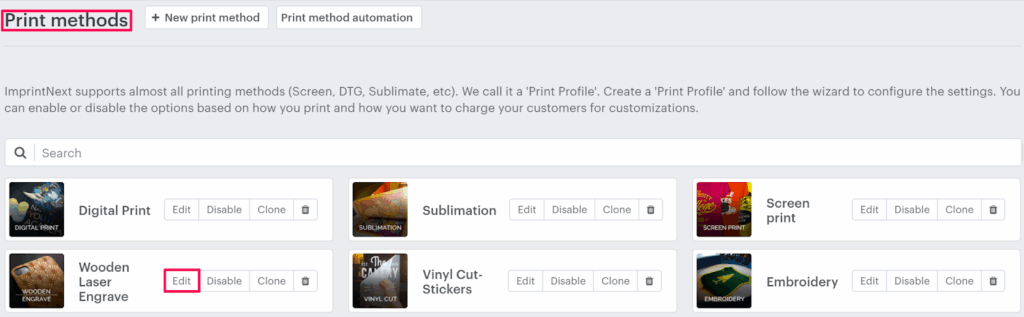
3. In the Print methods page, select your print method and click “Edit”
4. Select the Price Setting tab.

5. Click “Add Print Pricing”

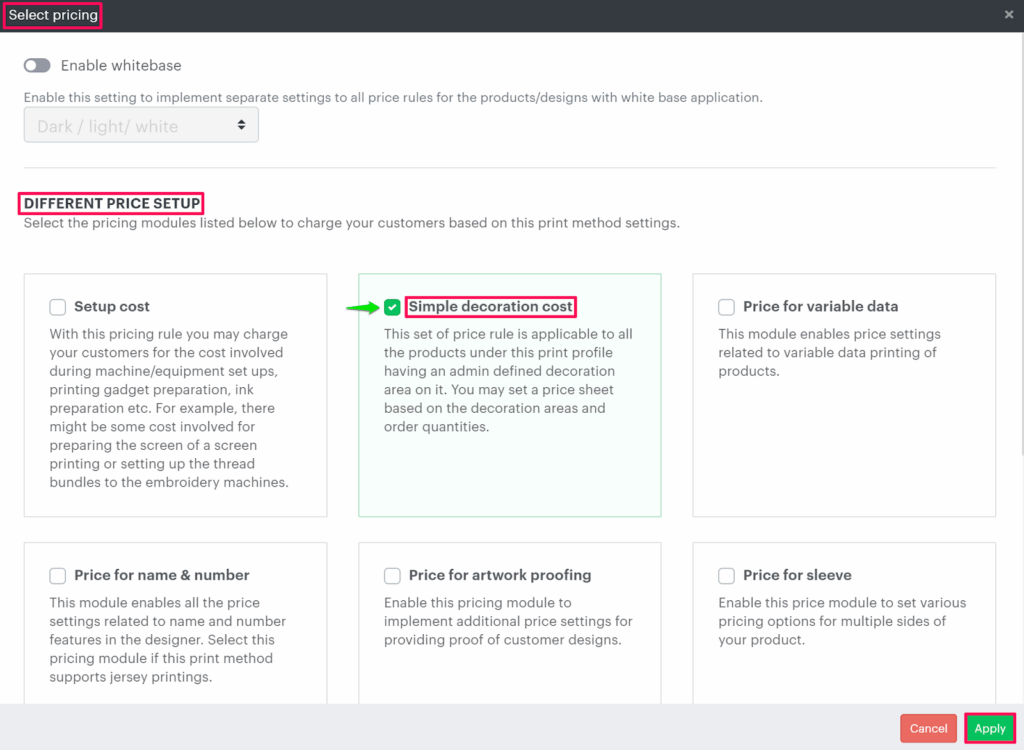
6. A pop-up named Select pricing appears. Under the Different price setup, select the Simple decoration cost checkbox and click “Apply”
7. Under Additional price setup, select the Convert to quantity tier checkbox, and a quantity tier table will open below. Now take the following actions:
- To configure the price for a larger print area, click “Add print area”
- To add more order ranges, click “Add tier”
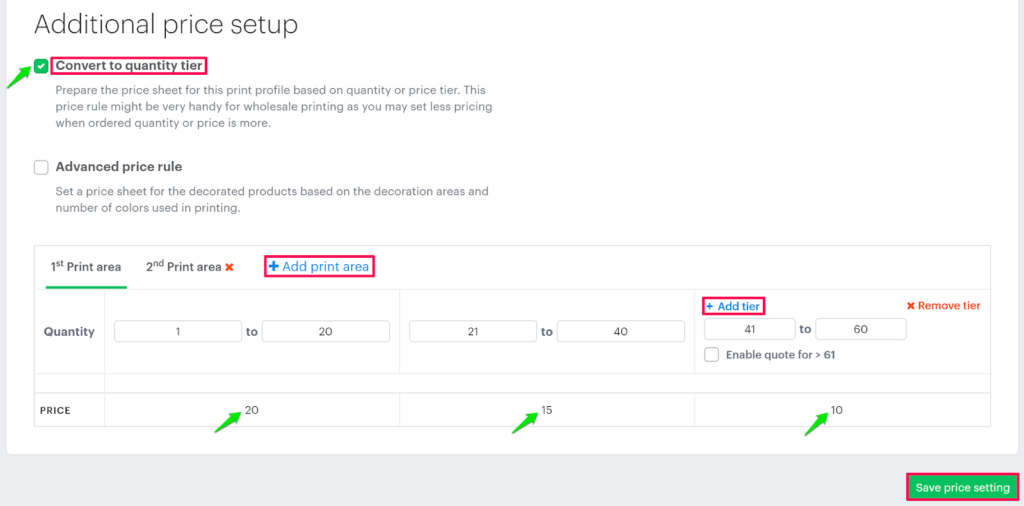
8. Click “Save price setting”
You have enabled the quantity tier for additional price setup!
Example:
How will the tool calculate the cost based on the price configuration?
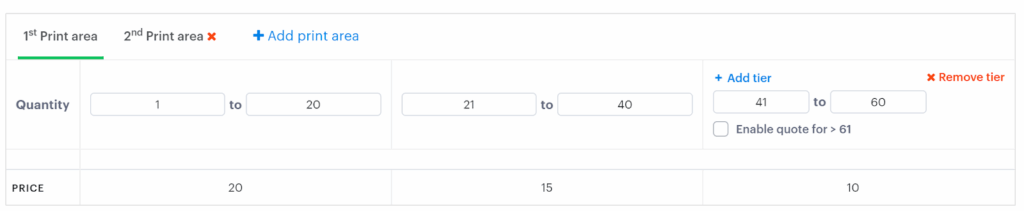
Order Range = 1- 60
Total print area = 2
Hypothetical Question 1:
For an order placed for 1 T-Shirt priced at $11 each, and the design is added only on one side so what will be the final price of the product?
Answer:
Order Quantity = 1
Number of customized sides = 1
As the design is added only in the first print area, it will take the price from the tab 1st Print area.
Then, the quantity of the product purchased is 1, so it will take a value from the quantity range 1-20, i.e., $20
So, the quantity tier price = $20.
Now, Decoration Cost = Quantity tier price x Order Quantity
= $20 x 1
= $20
The price will be shown to the customer:
Product Price + Decoration Price
= ($11 x Order Quantity) + $20
= ($11 x 1) + $20
= $11 + $20
= $31
So, the final price of the product will be $31.
Hypothetical Question 2:
For an order placed for 30 T-shirts priced at $11 each, and the design is added only on one side so what will be the final price of the product?
Answer:
Order Quantity = 30
Number of customized sides = 1
As the design is added only in the first print area, it will take the price from the tab 1st Print area.
Then, the quantity of product is 30, so it will take a value from the quantity range 21-40, i.e., $15
So, the quantity tier price = $15.
Now, Decoration Cost = Quantity tier price x Order Quantity
= $15 x 30
= $450
The price will be shown to the customer:
Product Price + Decoration Price
= ($11 x Order Quantity) + $450
= ($11 x 30) + $450
= $330 + $450
So, the final price of the product will be $780.
Hypothetical Question 3:
For an order placed for 50 T-shirts priced at $11 each, and a design is added on 2 sides so what will be the final price of the product?
Order Quantity = 50
Number of customized sides = 2
► The design is added to both sides of the product. For the design added on the first side, the calculation will be done from the tab 1st Print area, and for the design added on the second side, the calculation will be from the tab 2nd Print area.
For the 1st print area: The quantity of the product is 50. So it will take a value from the quantity range 41-60, i.e., $10
For the 2nd print area: The quantity of the product is 30. So it will take value from the table range 41-60, i.e., $5
Now, we will add both the prices that we get from the 1st Print area and the 2nd Print area
So, Quantity tier price = 1st Print Area + 2nd Print area
= $10 + $5
=$15
Now, Decoration price Quantity tier price x Order Quantity
= $15 x 50
= $750
Price shown to the customer:
Product Price + Decoration Price
= ($11 × 50) + $690
= $550 + $750
= $1,300
Final price of the product = $1,300