
Impact Designer gives you the flexibility to restrict your customers to design within a boundary of irregular shape and size. This boundary defines the area where printing is allowed.
To create the printing area of any shape using Adobe Illustrator:
1. Create a new file of 600X600 pixels.

2. Place an image of the product.
3. Open the Layers panel and lock the layer.
► This ensures that the printing area fits perfectly over the product.
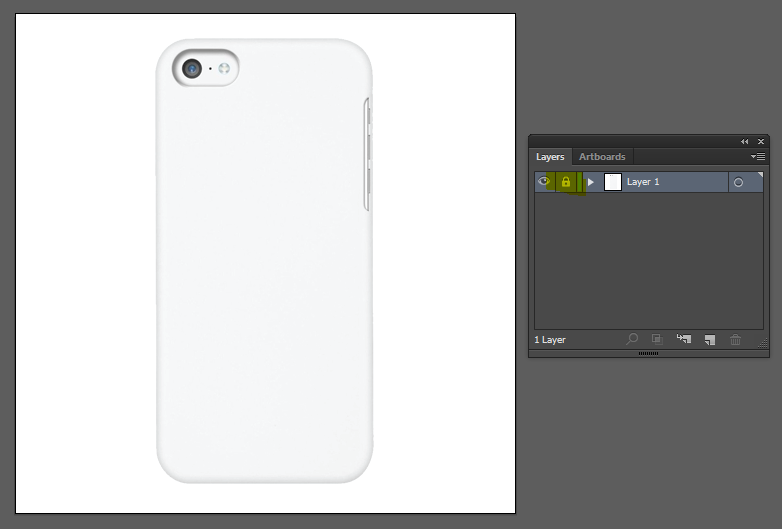
4. Draw the outline(s) over the product.
5. Set the fill color(s) of the path(s) to None.
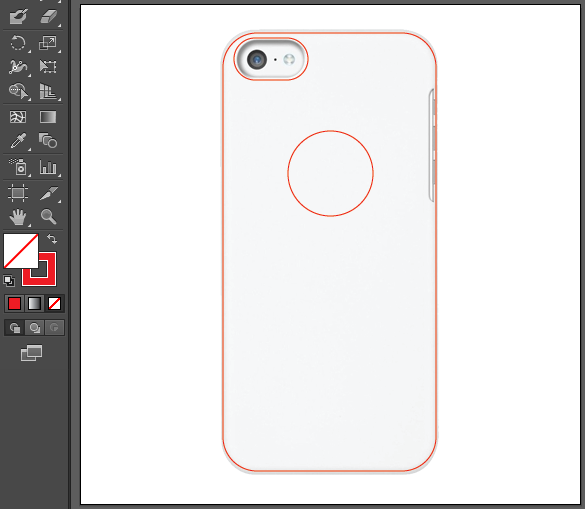
6. Delete the original product image.
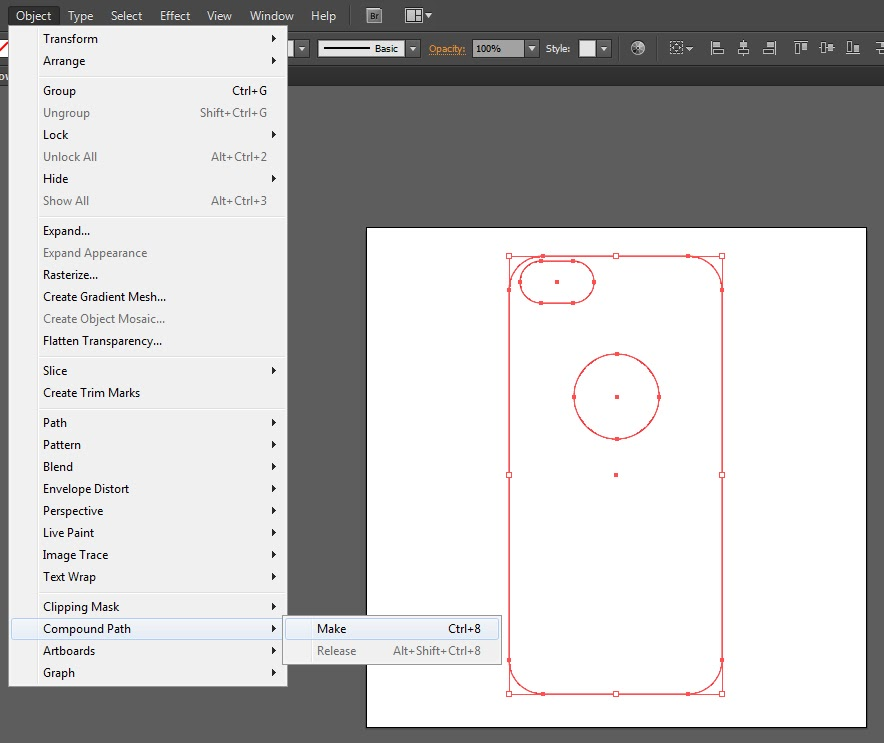
7. Select all the path(s).
8. Go to Object > Compound Path > Make.
- Shortcut (Windows): Ctrl + 8
- Shortcut (macOS): Cmd + 8
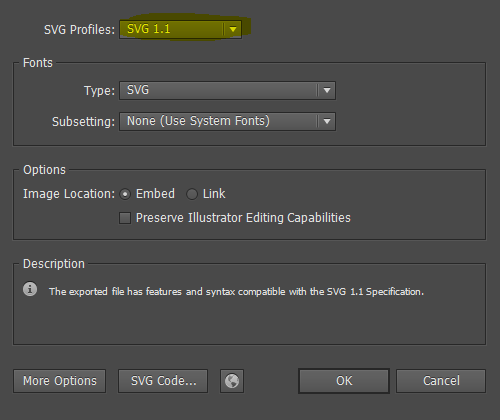
9. Save the path as an SVG file: File > Save As.
► SVG profile must be set to 1.1.
You are free to use any other similar software of your choice.
Make sure the output SVG has only one <path> tag, as shown below.

You now have the file ready to be uploaded as a print area!